Chamadas pelo Kommo (WebRTC)
As funcionalidades da integração entre o Kommo e o PABX Virtual ficam ainda mais completas com o uso da tecnologia WebRTC.
Com o WebRTC, você pode fazer, receber e transferir chamadas diretamente pelo navegador, dentro do próprio Kommo. Não é necessário usar softphone, telefone fixo, celular ou qualquer outro aplicativo adicional.
Assim, sua equipe consegue gerenciar leads e falar com clientes em uma única tela, sem precisar alternar entre sistemas ou dispositivos. Isso torna o atendimento mais prático e ajuda a economizar tempo no dia a dia.
Requisitos técnicos
- O widget de chamadas do Kommo funciona no Google Chrome, recomendado, e no Mozilla Firefox.
- É necessário usar um headset conectado ao computador para fazer e atender chamadas com boa qualidade.
Ativação do WebRTC
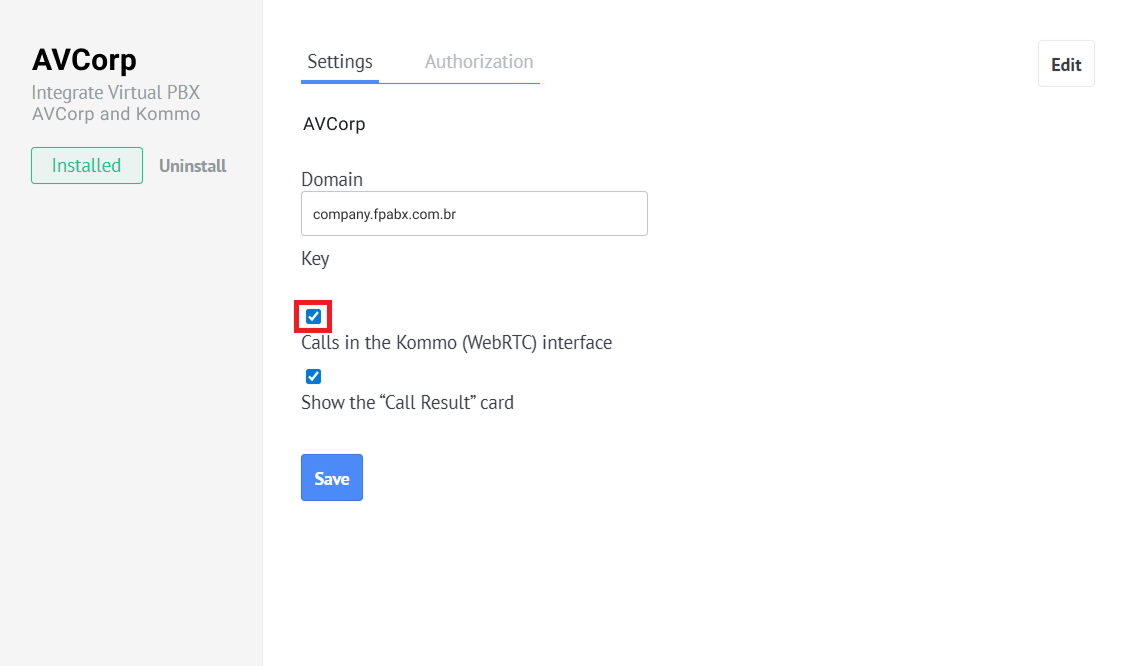
No Kommo, acesse Configurações → Integrações → Telefonia, selecione o seu PABX Virtual, marque a opção Chamadas na interface do Kommo (WebRTC) e salve as configurações.
Se a conexão for realizada com sucesso, um ícone de telefone aparecerá no canto inferior esquerdo da tela.
A partir desse momento, você poderá fazer, receber e transferir chamadas diretamente pela interface do Kommo.
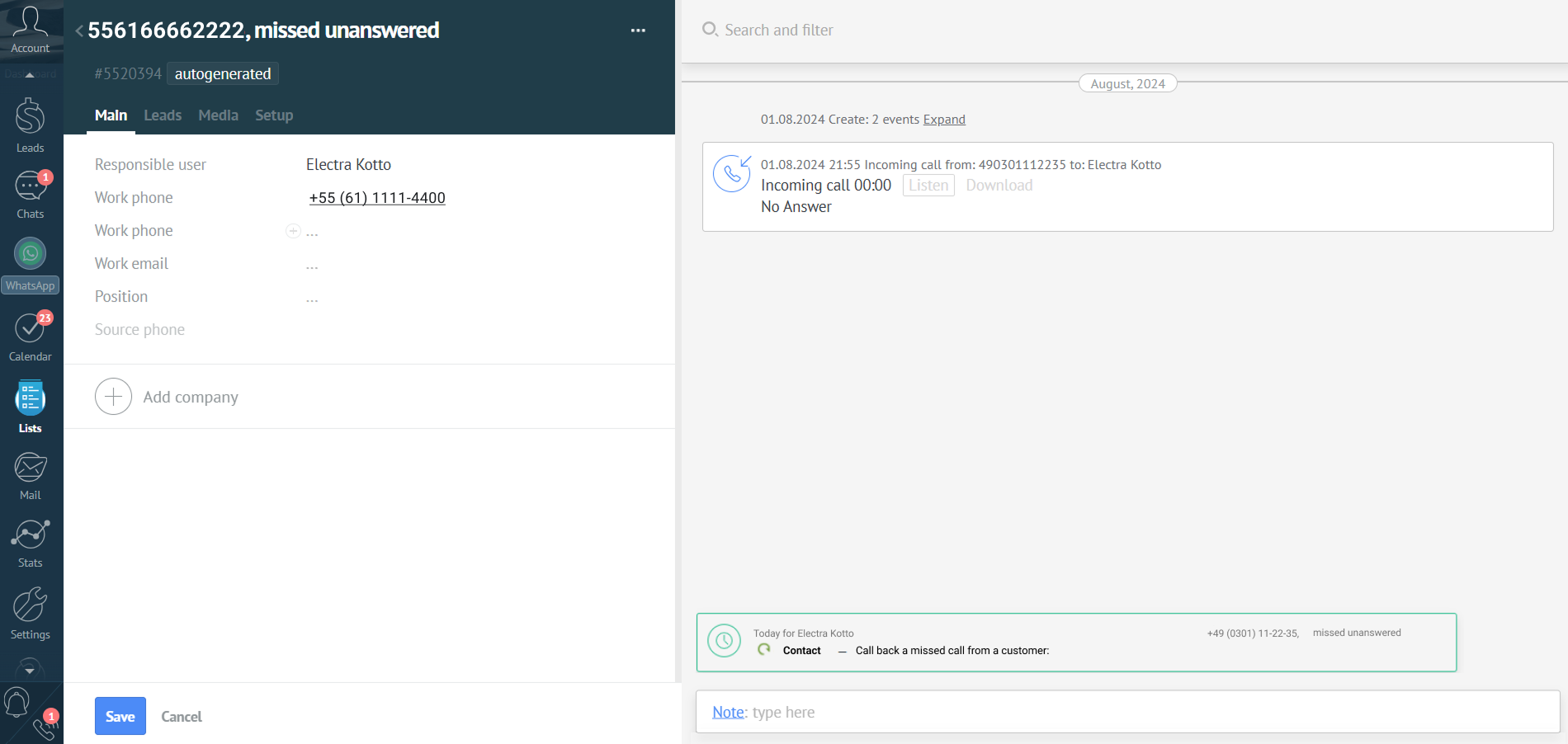
Observação importante
- Com o WebRTC ativado, você pode atender chamadas tanto pela interface do Kommo quanto por outros dispositivos cadastrados, como telefone IP, softphone ou celular.
- Se a chamada for atendida em outro dispositivo, os botões de controle do widget ficarão inativos. Mesmo assim, você ainda poderá visualizar as informações do cliente e criar contatos pelo widget.
Recursos da integração
1. Atender chamadas recebidas no Kommo
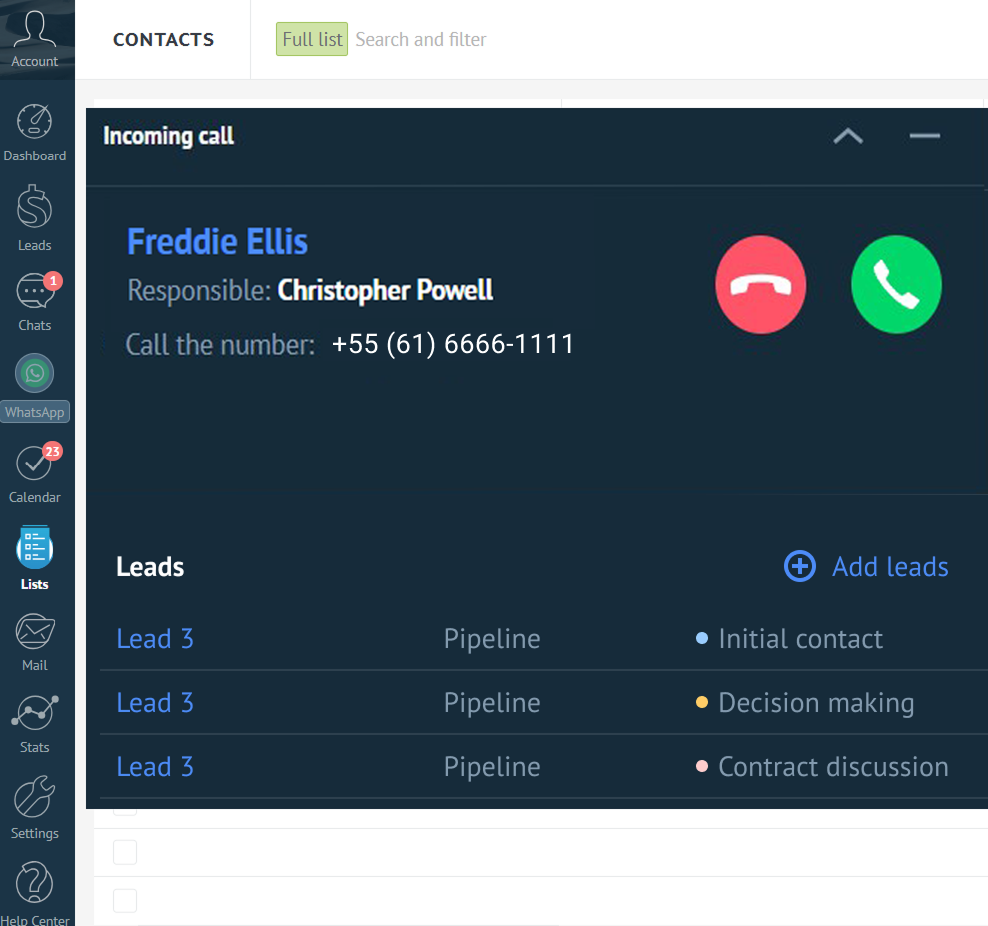
Ao receber uma chamada, o widget aparece na tela com as informações do cliente. Para atender, basta clicar no botão verde de telefone.
2. Fazer chamadas pelo widget
Você pode fazer chamadas pelo Kommo de duas formas:
* Ligando para um contato já salvo: abra o cartão do cliente ou a lista de contatos e clique no número de telefone. Além de copiar ou editar o número, você também poderá iniciar a chamada diretamente pelo Kommo.
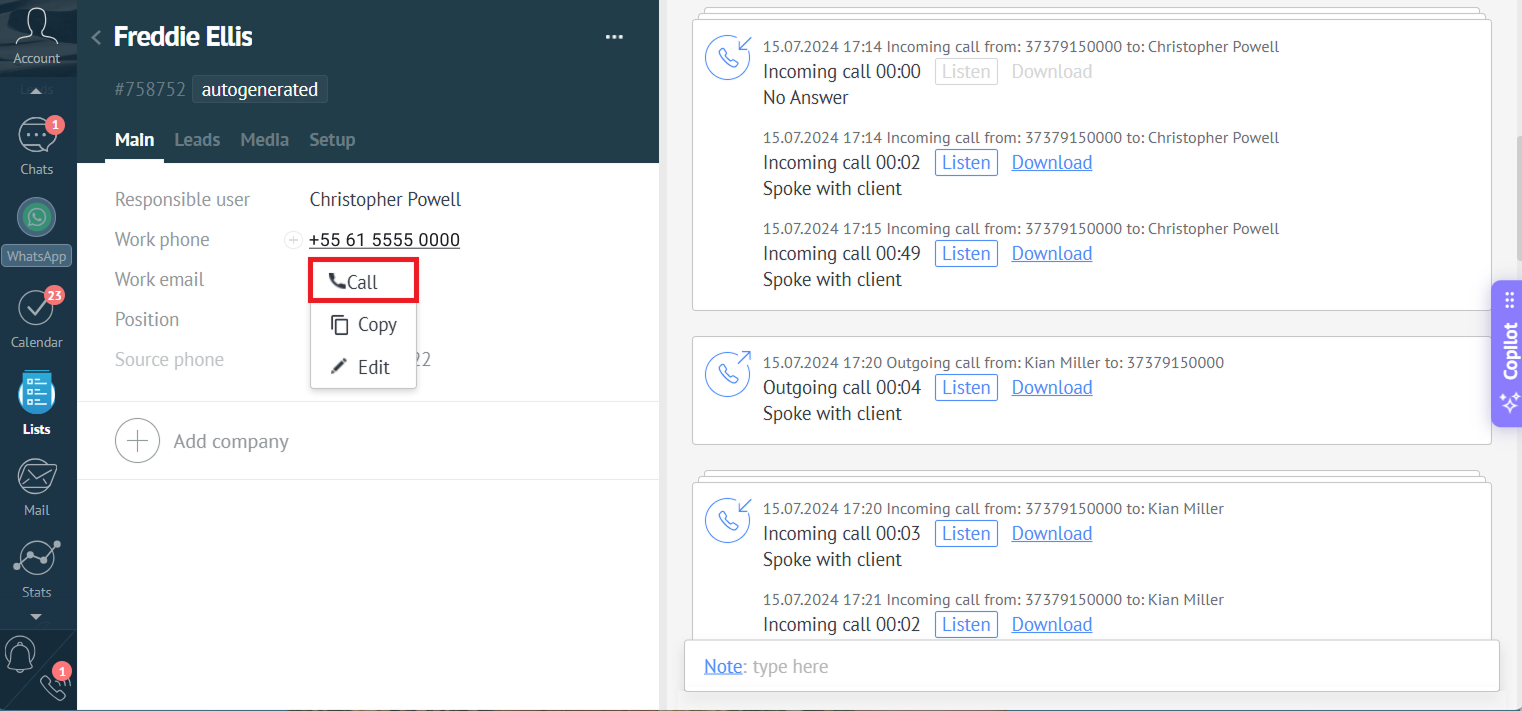
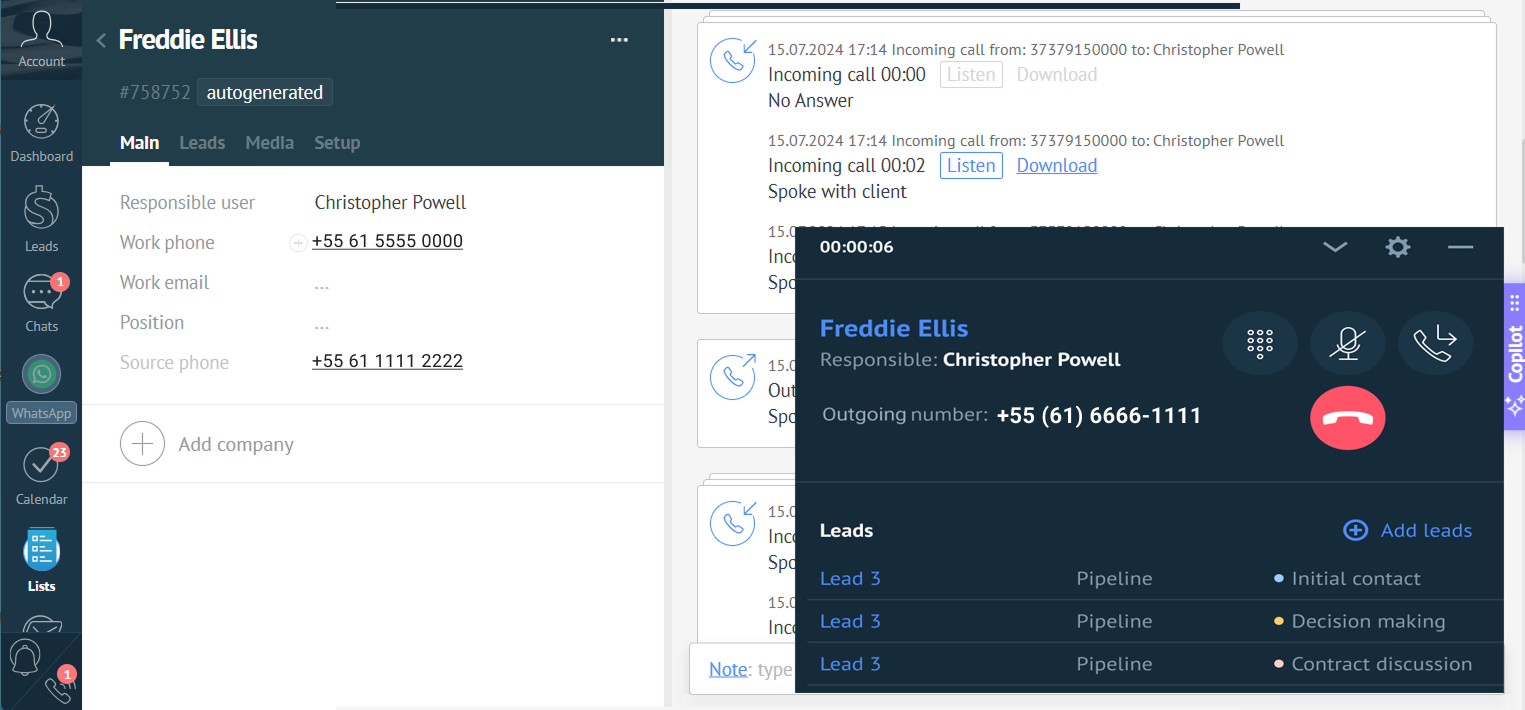
Ao iniciar a chamada, o widget será aberto e permitirá controlar a ligação, incluindo a opção de transferir para outro usuário.
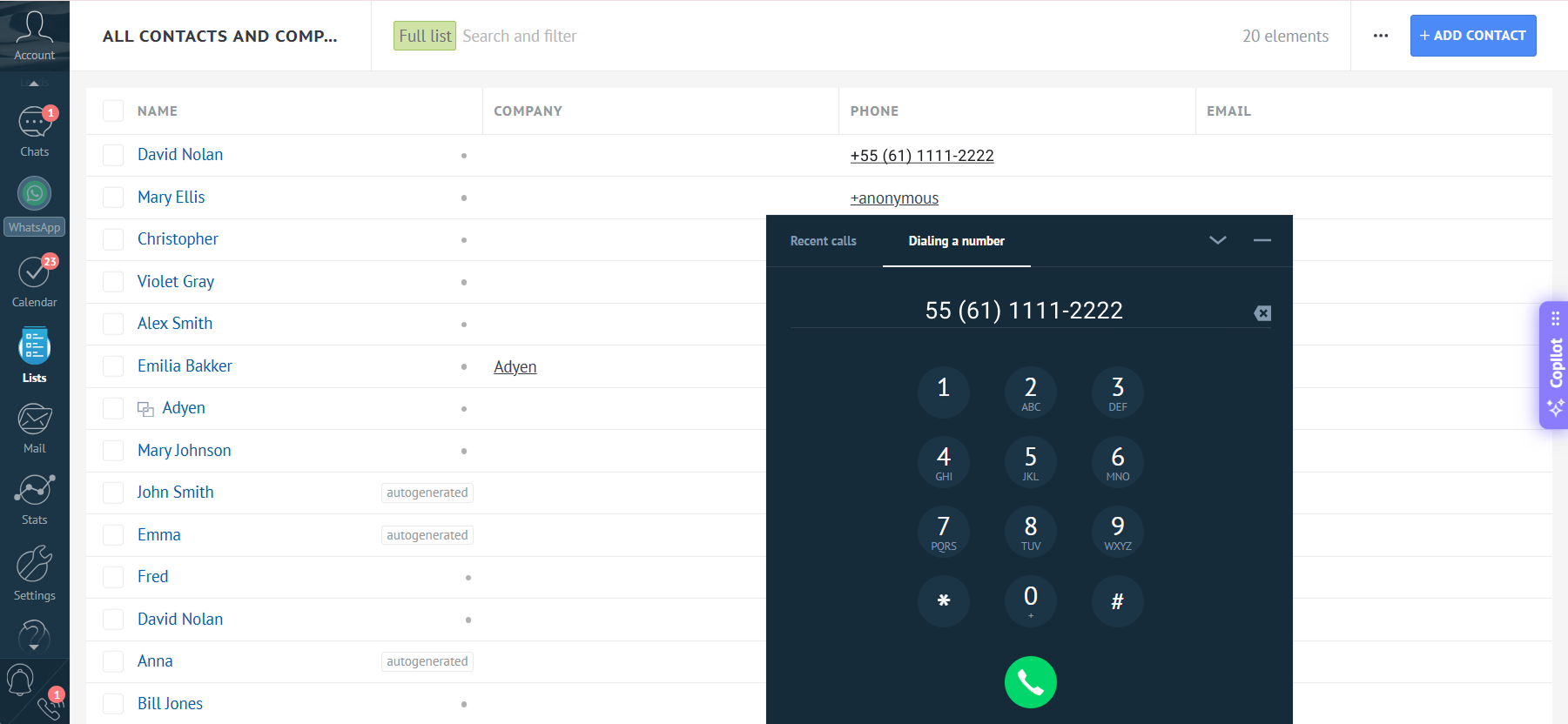
- Ligando para um número que ainda não está salvo no Kommo: clique no ícone de telefone no canto inferior esquerdo da tela e digite o número manualmente, usando o teclado do computador ou os botões do widget.
3. Transferir chamadas pelo Kommo
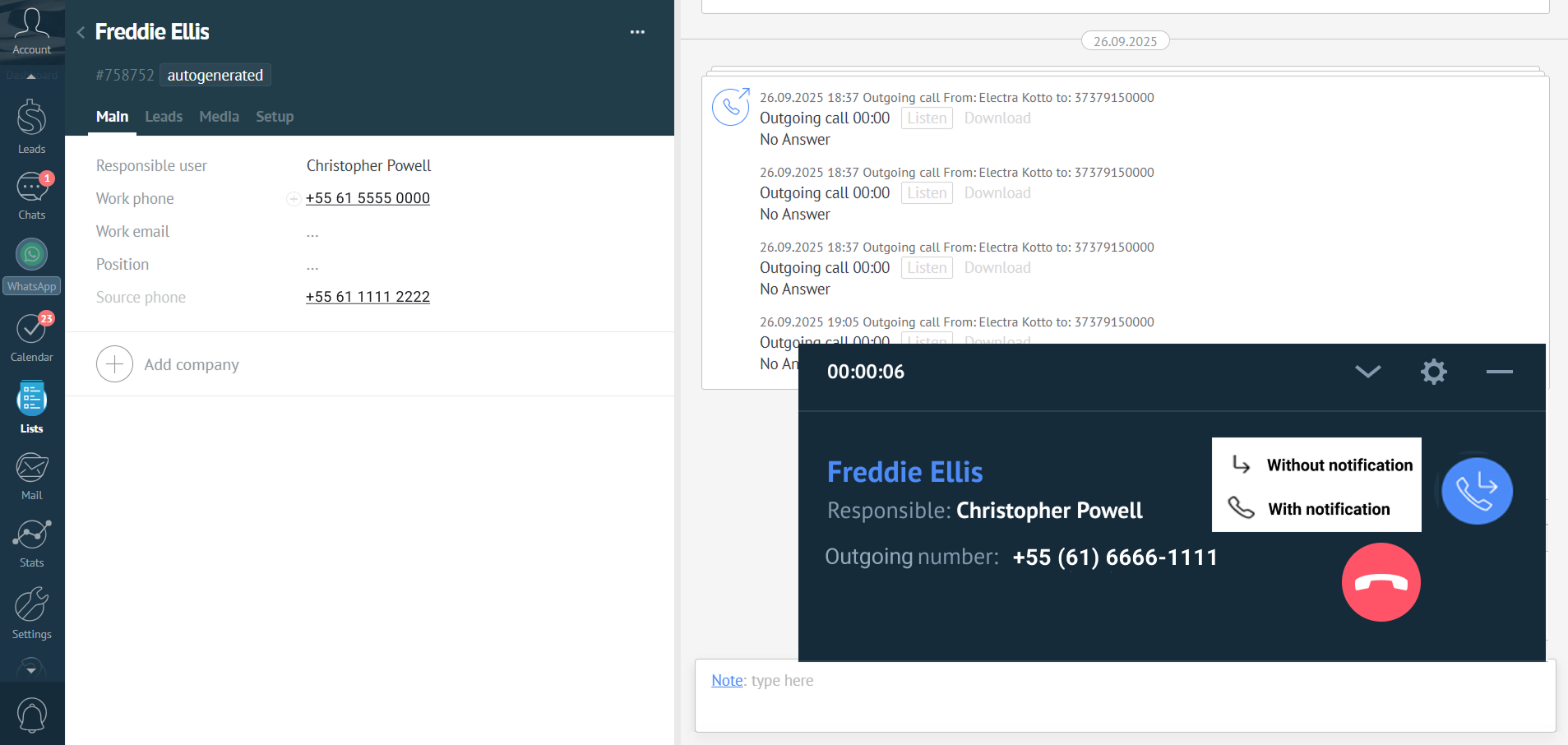
Durante uma chamada, você pode transferir a ligação para outro funcionário ou para um número externo.
Para isso, clique no botão de transferência no widget, selecione um funcionário da lista ou digite o número desejado. Em seguida, escolha o tipo de transferência:
- Transferência direta: a chamada é enviada diretamente para o destino.
- Transferência assistida: você fala com o destinatário antes de concluir a transferência.
4. Salvar o resultado da chamada
Quando a chamada termina, o widget exibe uma janela com o resumo da ligação.
Nessa tela, você pode:
- alterar o pipeline e a etapa de um lead já existente
- criar um novo lead com base na chamada
- vincular o lead ao contato correto
- adicionar uma observação ao lead
- criar uma tarefa para o contato ou para um responsável
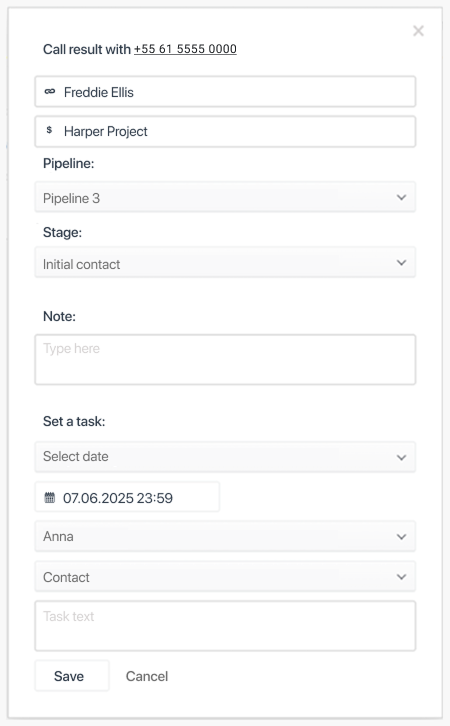
Se não for necessário fazer nenhuma alteração, basta fechar a janela de resultado da chamada.
5. Lista de discagem
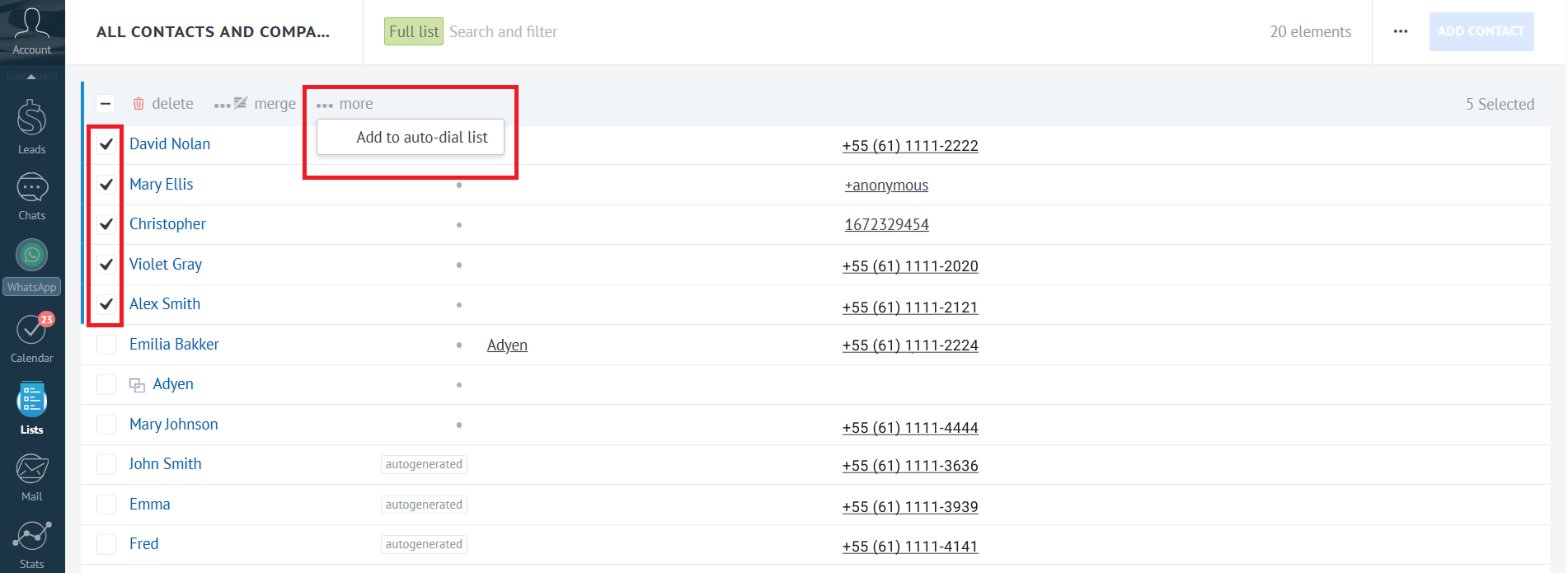
Se um funcionário precisa ligar para vários clientes, é possível criar uma lista de discagem dentro do Kommo e iniciar as chamadas pelo widget.
Para criar a lista, selecione vários contatos, clique em Mais e depois em Adicionar à lista de discagem automática.
O widget exibirá a lista de clientes que serão chamados. Quando estiver pronto, clique no botão de iniciar, e o PABX Virtual começará a ligar para o primeiro contato da lista.
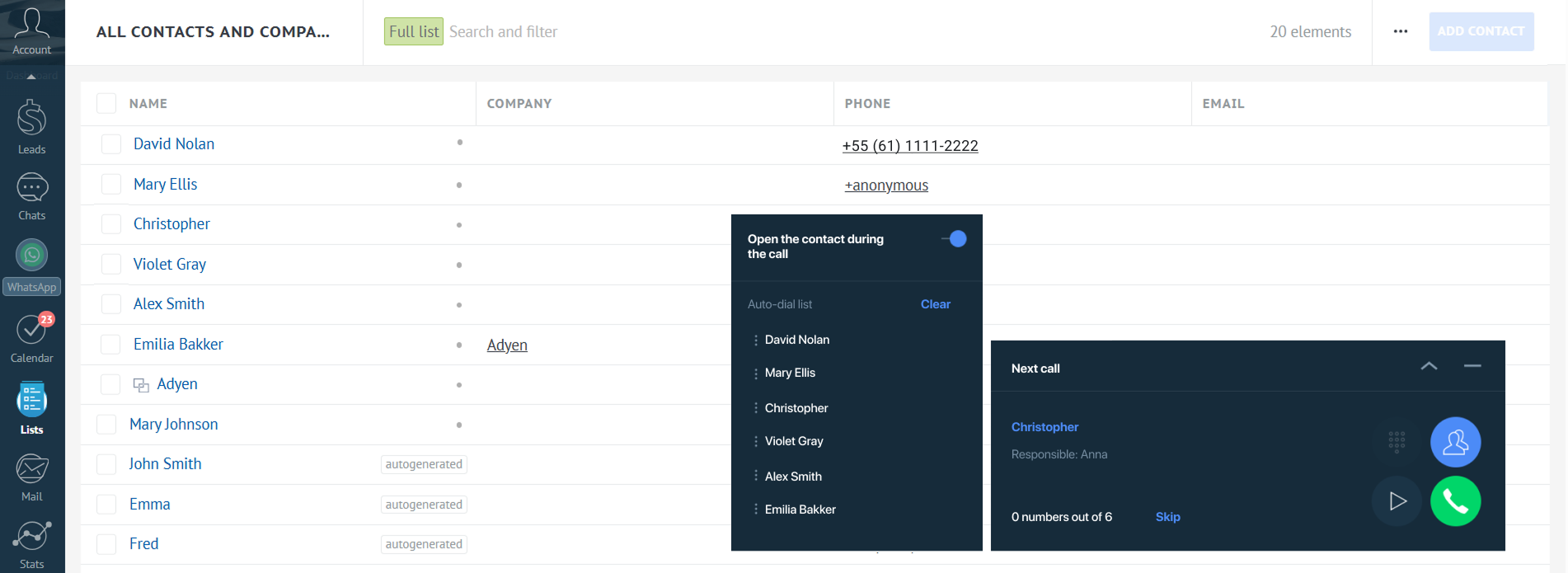
Antes de cada chamada, o funcionário terá alguns segundos para se preparar. Se preferir, também pode iniciar a ligação imediatamente clicando no botão verde de telefone.
Durante a lista de discagem, é possível:
- pausar as chamadas
- pular o próximo contato
- alterar a ordem dos contatos
- visualizar quantos contatos ainda faltam
- abrir automaticamente o cartão do cliente ao iniciar a chamada
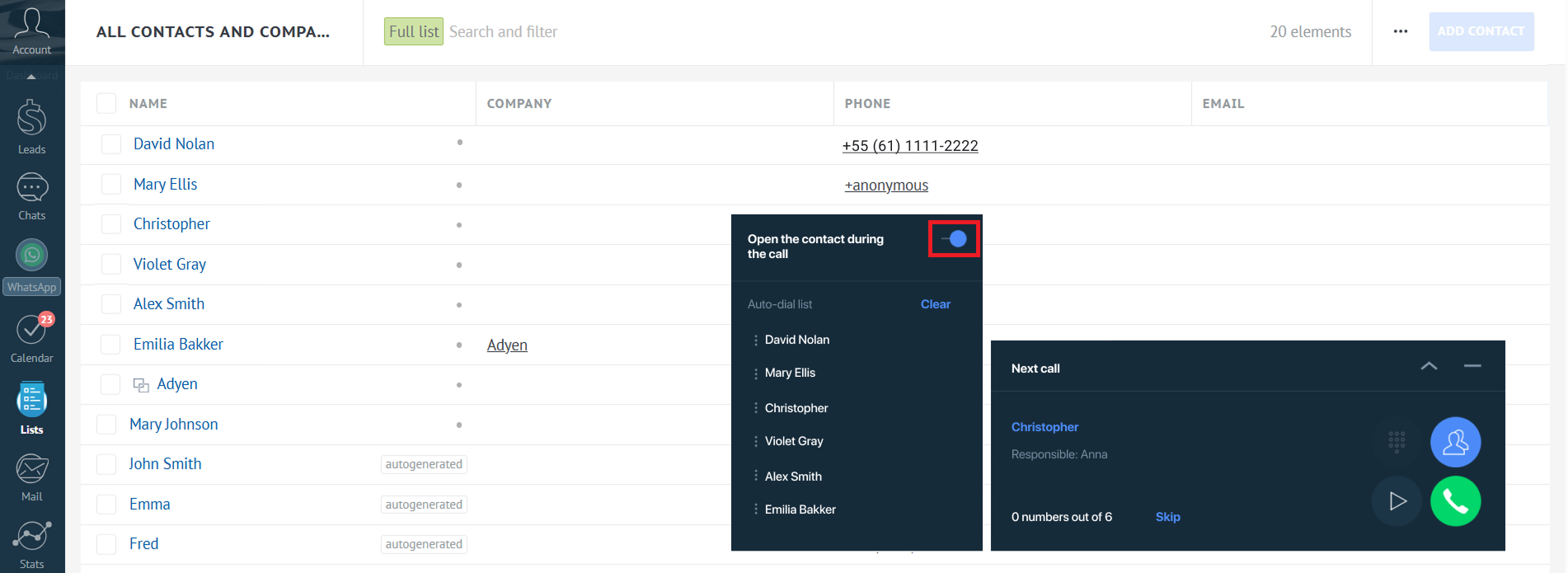
Esse recurso ajuda a organizar melhor as ligações e economiza tempo em operações com grande volume de contatos.
6. Outros recursos da integração com o Kommo
Além das chamadas pelo WebRTC, a integração entre Kommo e PABX Virtual também permite:
- criação automática de leads, contatos, tarefas e registros em Não Classificados
- registro das chamadas no cartão do cliente
- acesso às gravações das chamadas
- conexão automática do cliente com o responsável pelo atendimento
- análise de chamadas dentro do Kommo
- aplicação automática de tags
Para saber mais sobre todos os recursos da integração entre o PABX Virtual e o Kommo, consulte este artigo.
Perguntas frequentes e possíveis problemas
- Se eu atender uma chamada no celular em vez de atender pelo Kommo, ela será salva no Kommo?
Sim. Se a integração estiver configurada corretamente, a chamada será registrada no Kommo.
- Se eu fizer uma chamada pelo softphone em vez de ligar pelo Kommo, ela será salva no Kommo?
Sim. As chamadas feitas por outros dispositivos também podem ser registradas no Kommo, desde que estejam vinculadas corretamente ao usuário.
- As chamadas pelo Kommo não estão funcionando ou o ícone de telefone não aparece no canto inferior esquerdo. O que devo fazer?
Tente seguir os passos abaixo:
- Atualize a página do Kommo.
- Reinicie completamente o navegador.
- Verifique se a opção Chamadas na interface do Kommo (WebRTC) está ativada nas configurações do widget.
- Verifique se os usuários do Kommo estão corretamente vinculados aos usuários do PABX Virtual.
- Use o Google Chrome ou Mozilla Firefox. Caso esteja usando Firefox e o problema continue, recomendamos testar no Google Chrome.
Se, mesmo após essas verificações, as chamadas ainda não funcionarem, entre em contato com o nosso suporte e envie uma descrição detalhada do problema.
Se o ícone de telefone aparece no canto inferior esquerdo, mas você não consegue realizar chamadas, informe também:
- o horário da tentativa
- o número discado
- o usuário que tentou realizar a chamada
- uma captura de tela das informações técnicas do navegador
Para gerar essa captura, siga os passos abaixo:
- Abra o console do desenvolvedor pressionando F12 ou acessando Menu → Mais ferramentas → Ferramentas do desenvolvedor.
- Acesse a aba Network.
- Depois, clique em WS.
- Vá até a aba Frames.
- Faça uma captura da tela exibida e envie para o suporte.
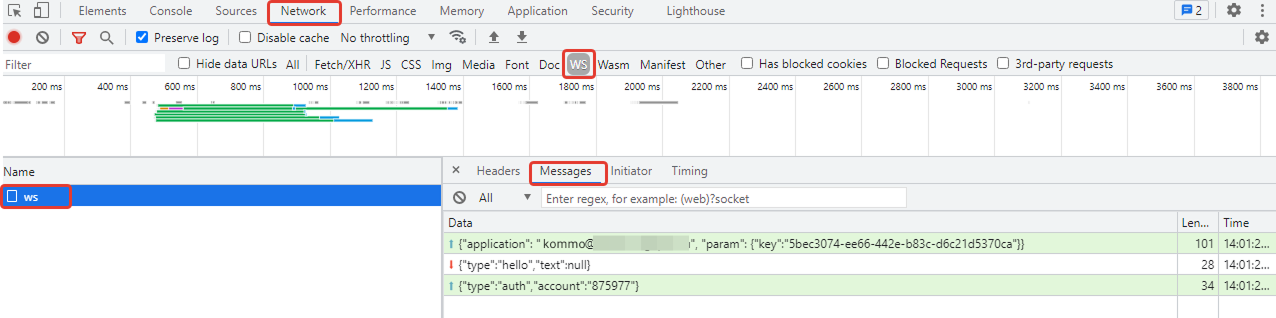
A tela será semelhante a esta: